April 30, 2026
CG100X Programmerreleased new software V2.0.8.0 on April 29th, 2026.
CG100X 2.0.8.0

Posted by: jean at
08:44 AM
| No Comments
| Add Comment
Post contains 258 words, total size 5 kb.
April 29, 2026
We would like to share an issue and its solution regarding a 2022 Peugeot 208 4A smart key failing to start the vehicle after key programming. We hope this helps others who encounter the same problem.
Problem:
2022 Peugeot 208 smart key 4A tried to add a key withAutel MaxiIM IM508key programmer. Everything went smoothly, read pin ok and add smart key. It said to turn off emergency indicators after 30 minutes. Did add key 30 min and both keys stopped working. Both keys won’t start.

Solution:
After programming key there’s a 30 min wait before you can start car, wait until hazard stop flashing before trying to start.
30 min waiting time. common on those vehicles just wait.
Autel worked well. He got pin code, pin code is good because he erase original keys (he enter in programmong procedure), and he didn’t program any key to car (because that hazard lights iliminate constant, because there is no any key programmed).
He missed spot for key programming, or key sense area is not working.
Added AKL key 30 min waiting with the turn signals that turn on itself.
Feedback:
Came back the next day and went to control unit and keyless system(can). Added anotherkeydiy zb smart key. Did learning for the proximity functions once the key was added on the sense area by holding the lock button for 10 seconds.
Posted by: jean at
06:33 AM
| No Comments
| Add Comment
Post contains 240 words, total size 3 kb.
April 28, 2026
How to read Toyota/Lexus smart key information and generate EoneBoss ET key usingEoneBoss TLK3key tool?
Run EoneBoss App.
Where to download EoneBoss App?
Scan the QR code here to download EoneBoss App.
Download from Google Play, Apple Store, or directly download APK to your desktop.

Press the blue button on TLK3 unit and see the indicator turns Bluetooth.

In App, selectTLK3/Key Assistant.

HitConnectand pair TLK3 with App via Bluetooth.

SelectAuto Identify & Remotefunction.
Put the original key on theTLK3sensing area.


Press the lock button continuously.

EoneBoss App will automatically detect the key information, including key ID, key position, key chip type (P4) and frequency.


Then we take out EoneBoss ET key. MUST generate EoneBoss’s Toyota/Lexus wirelessET smart remote!!!
HitGenerate ET Key.

Read the instructions and press the buttons on the EoneBoss key, then confirm.


PressConnectto pair ET key with TLK3.

Generate Eoneboss ET key.

Configure key buttons.

Generate ET key completed.
Then, put the ET key on the start button to sync key.

Posted by: jean at
07:12 AM
| No Comments
| Add Comment
Post contains 170 words, total size 3 kb.
April 27, 2026
Problem:
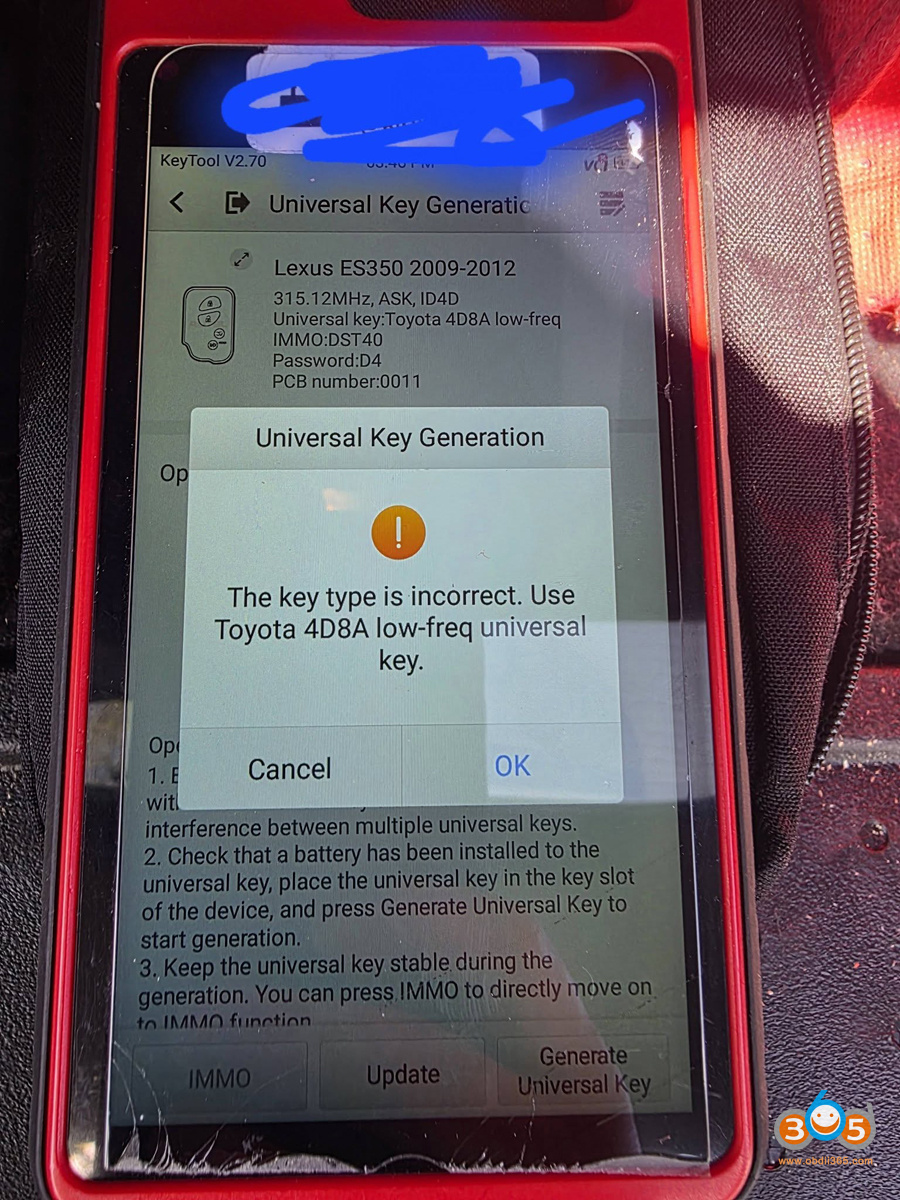
When i tried to generate Lexus es350 key todayAutel KM100is giving me error.
I used theAutel Toyota keybut not able to. Anyone know why?


Solution:
You’re using the wrong key.
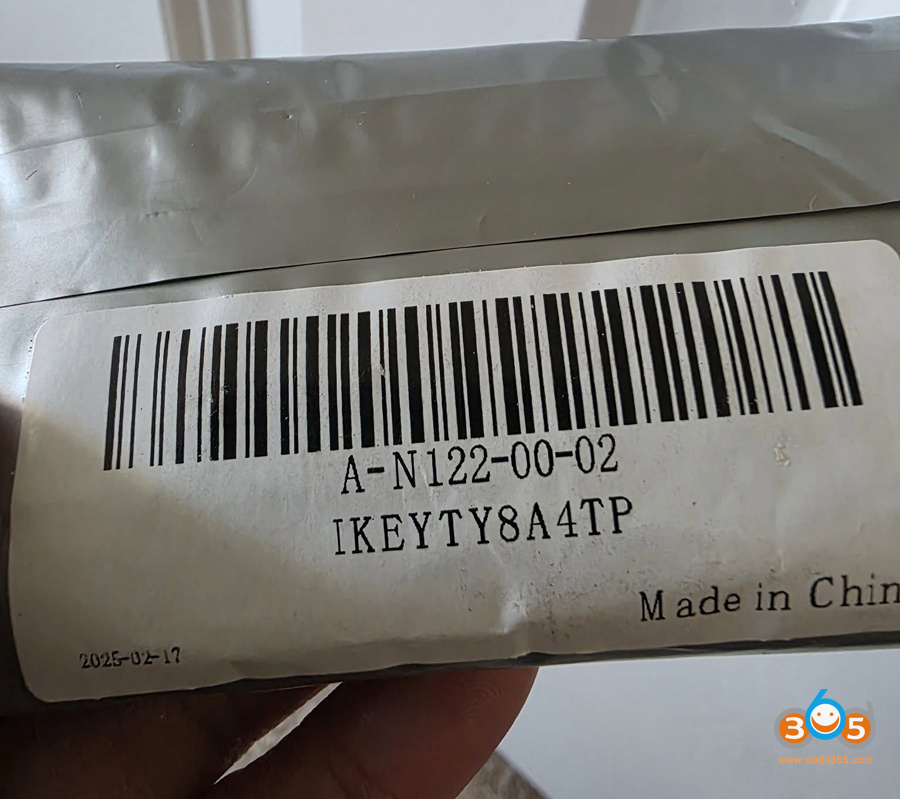
That key has an 8A chip in it not a super chip. This Autel Toyota ikey can be used to generate Toyota 8A remote ONLY. CANNOT generate Toyota 4A or other chips.
The proximity you’re trying to generate uses a 4D chip. Can’t generate a 4D chip onto an 8a chip.
Use one of these Autel standard smart keys. It works fine for 4D.

Posted by: jean at
08:06 AM
| No Comments
| Add Comment
Post contains 106 words, total size 3 kb.
April 24, 2026
Tutorial: How to download, install, activateEngineDance X5ECU software and connect ECU for diagnostics and tuning.
1. Software Download
Download EngineDance X5 software on the official website edx5.com.
Go toService and SupportMenu.
Scroll down and download "X5 Installer".
If your browser gives you a security warning, click "Keep” on the download prompt.

2. Software Installation
Install X5 software setup.
Select language
Accept the license agreement
Install the setup.


Once the installation is complete, you will see two new icons on your desktop.
One is the X5 application and the other is for your local data.

3. Software Activation
Connect X5 device with laptop/computer via USB cable.

Run X5 software.
You will see this icon means the device is connected and good to go.

Click onSoftware Upgrade.
Go toDevice Activation.
A quick activation is required for first-time use.
Sign up with a username and password to activate X5 software.

After activation, choose the language you desired.

Check software version and make sure everything is up-to-date.

4. Connect ECU
After configuring software, connect ECU with X5 device on bench mode.

A reading around 12V and 24V is within the normal voltage range.

NOTE: If EngineDance X5 asks for a 6-digit user password, input123456 or the lastsixdigitsof the device serial number.

Posted by: jean at
07:58 AM
| No Comments
| Add Comment
Post contains 215 words, total size 3 kb.
April 23, 2026
One of the biggest challenges when working with modern vehicles is identifying the exact remote type—whether it’s a flip key, a smart key, an older model, or a newer generation. Getting it wrong can waste time and create unnecessary complications.
With KeyDIY (KD) devices, however, that distinction is no longer necessary when programming 5C and 5D keys.
Key Advantage: No Manual Pre-Generation
Unlike many other programming devices, KD equipment does not require the technician to pre-select or pre-generate a program before reading the key. During both the key reading process and dealer key generation, the KD device automatically matches the appropriate program in the background. This seamless process means the technician can focus on the job without having to manually identify the remote type.
Supported 5C Types (including all ZB remotes)
The KD platform fully supports the following 5C remote types:
Supported 5D Types (specified FGB remotes)
For 5D keys, KD supports the following FGB remote models:
Bottom Line
Whether you are dealing with an older 5C remote or a newer 5D FGB model, the KD device eliminates guesswork. Automatic program matching simplifies the workflow, reduces errors, and saves valuable time on each job.

Posted by: jean at
07:05 AM
| No Comments
| Add Comment
Post contains 211 words, total size 3 kb.
April 22, 2026
User feedback:
Successfully added a spare key on a 2022 Ford F-150 usingOBDSTAR X300 Classic G3.
G3 gives you outcode. Need to send outcode to 3rd party to get incode.
Then add key via OBD.
Keep Ford IMMO software up-to-date.


Posted by: jean at
08:51 AM
| No Comments
| Add Comment
Post contains 50 words, total size 5 kb.
April 20, 2026
User feedback:
Adding key to Toyota Supra is now an easy job.
Supra now it’s not a Toyota, it’s BMW with a Toyota label. Supra is BDC3 system.
Copied key withKeydiy KD-X4.
Only spare is easy. All keys lost is still a few months wait for dealer key.

Posted by: jean at
06:02 AM
| No Comments
| Add Comment
Post contains 56 words, total size 1 kb.
April 16, 2026
OBDSTAR DC706andX300 Classic G3(with ECU license activation) will release new TCU software upgrade next week.
Support Function(Via Bench Mode)
1. Support Data Read/Write, Mileage Calibration and lMMO Data Decryption (Exclusive) functions for BOSCH DQ380 (0DE/0GC)/ DQ381(0DE/0GC)/ DQ500(0DL) GEN2.
Recommended Wiring Cable:TCM-005
2. Support Data Read/Write function for ZF AL552 GEN2
Recommended Wiring Cable:TCM-024
Support Model
VOLKSWAGEN
-AUDI
SKODA
BENTLEY
LAMBORGHINI
PORSCHE
BH1G0401
Support Bootloader Version

Posted by: jean at
08:22 AM
| No Comments
| Add Comment
Post contains 72 words, total size 2 kb.
April 15, 2026
Problem:
Failed to update Lonsdor KH100+ key tool, it reported an error "Upgrade error, code 00”.

Solution:
Download and install KH100 repair file and restart.
https://mega.nz/file/ynYwWbIa#z8y-U8sBIOkgvi_Oa4Vu1lJc6LeXNrcTlefQoK0EFwA
There is a repair video guide.
Steps:
Step 1. Install .Net Framework 4.6.1.
Step 2. Unzip the above file.
Step 4. Use the USB cable to connect Lonsdor KH100+ to the computer, long press the "Down” button for few seconds and then press the power button once.
Step 3. Hold the "Down” button for a few seconds and press the power button once, you will enter USB data mode.
Step 5. Open the above repair file, click on "KH100UpdateTool.exe.”, then "Update”, soon you can see "Update completed”.
Step 6. Back to KH100+ and press "OK” button, and the device will update automatically, you just check whether it will work normally.
Posted by: jean at
06:06 AM
| No Comments
| Add Comment
Post contains 143 words, total size 2 kb.
32 queries taking 0.1439 seconds, 209 records returned.
Powered by Minx 1.1.6c-pink.