



September 12, 2024
How to Set up Vgate iCar Pro 2S with Android Apps?
1. How to Connect Vgate iCar Pro 2S Bluetooth with OBDocker App on Android
Step1:
Open your phone's Bluetooth Settings, search for and tap "Android-Vlink".

Step2:
A request pairing prompt will be generated when pairing, enter the pairing code "1234" and click "OK".

Step3:
Successfully paired to the Bluetooth device "Android-Vlink".

Step 4:
Open OBDocker APP, click ‘Connect’.

Step 5:
Select the adapter ‘Vgate iCar BLE+Bluetooth’.

Step 6:
Click "Connect"

Step 7:
Waiting for the app to establish a connection with the car

Step8:
Connected successfully

2. How to Connect iCar Pro 2S with Bimmer-tool on Android
Step1:
Open your phone's Bluetooth Settings, search for and tap "Android-Vlink".
Step2:
A request pairing prompt will be generated when pairing, enter the pairing code "1234" and click "OK".
Step3:
Successfully paired to the Bluetooth device "Android-Vlink".
Step4:
Opentheappandclickonthebuttoninthetoprightcorner.
Step5:
ChoosetheConnectiontype"Bluetooth".
Step6:
Select the paired Bluetooth device "Android-Vlink".
Step7:
Click on "CONNECT".
Step8:
Waiting for the app to connect to the vehicle's ECU.
Step9:
Connected successfully.
3. How to Connect iCar Pro 2S with AlfaOBD on Android
Step1:
Open your phone's Bluetooth Settings, search for and tap "Android-Vlink".
Step2:
A request pairing prompt will be generated when pairing, enter the pairing code "1234" and click "OK".
Step3:
Successfully paired to the Bluetooth device "Android-Vlink".
Step4:
Open the app and click on Bluetooth.

Step5:
SelectthepairedBluetoothdevice"Android-Vlink".

Step6:
Connected successfully.

4. How to Connect iCar Pro 2S with Torque Proon Android
Step1:
Open your phone's Bluetooth Settings, search for and tap "Android-Vlink".
Step2:
A request pairing prompt will be generated when pairing, enter the pairing code "1234" and click "OK".
Step3:
SuccessfullypairedtotheBluetoothdevice"Android-Vlink".
Step4:
Open the app and click on the settings icon in the bottom left corner.

Step5:
Clickon"Settings".

Step6:
Clickon"OBD2AdapterSettings".

Step7:
Click on 'Connection Type' to select the connection method.

Step8:
Click on "Bluetooth"

Step9:
Click on "Choose Bluetooth Device".

Step10:
Select the paired Bluetooth device "Android-Vlink".

Step11:
Afterselectingthecorrectdevice,returntothehomepageandwaitfortheapptoconnect.

Step12:
Connected successfully.

5. How to Connect iCar Pro 2S with inCarDocon Android
Step1:
Open your phone's Bluetooth Settings, search for and tap "Android-Vlink".
Step2:
A request pairing prompt will be generated when pairing, enter the pairing code "1234" and click "OK".
Step3:
Successfully paired to the Bluetooth device "Android-Vlink".
Step4:
Open the app and click on "Settings".

Step5:
Click on "Connection".

Step6:
Click on "Connection mode".

Step7:
Select "Bluetooth" as the connection mode.

Step8:
Click on "BT connection".

Step9:
Select the paired Bluetooth device "Android-Vlink".

Step10:
Return to the home page when the settings are complete.
Step11:
Click on "Connect <BT"Android-Vlink">

Step12:
Connected successfully.

6. How to Connect iCar Pro 2S with EOBD-Facile-caron Android
Step1:
Open your phone's Bluetooth Settings, search for and tap "Android-Vlink".
Step2:
A request pairing prompt will be generated when pairing, enter the pairing code "1234" and click "OK".
Step3:
Successfully paired to the Bluetooth device "Android-Vlink".
Step4:
Open the app and click on "Settings".

Step5:
Click on:"Interface".

Step6:
Select: "ELM327 Bluetooth".

Step7:
Aftersettinguptheinterface,returntothehomepage.Clickon"Connection".

Step8:
Selectthepaireddevice"Android-Vlink".

Step9:
Wait for the app to connect to the iCar Pro 2S.

Step10:
Select your car model.

Step11:
Wait for the app to connect to the car ECU.
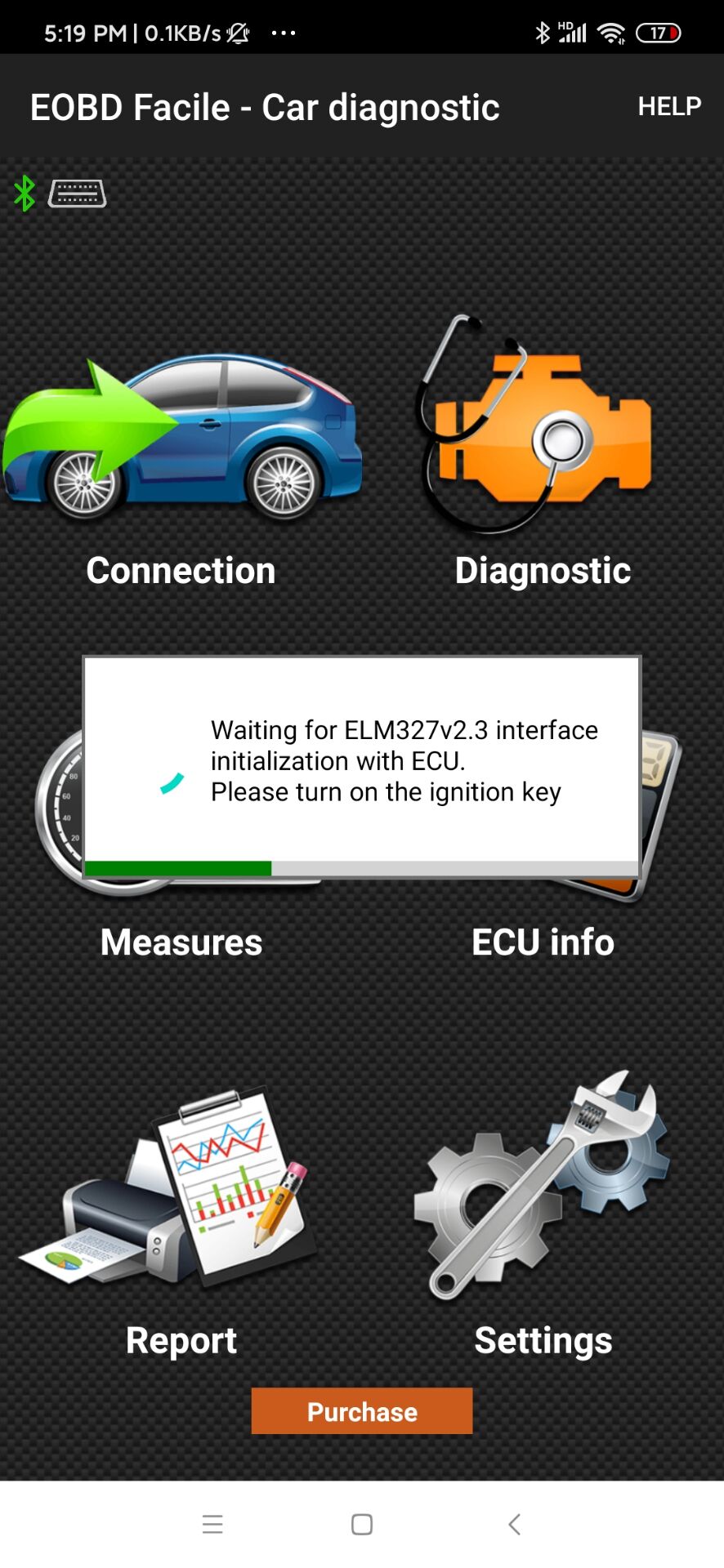
Step12:
Connected successfully.

7. How to Connect iCar Pro 2S with DashCommandon Android
Step1:
Open your phone's Bluetooth Settings, search for and tap "Android-Vlink".
Step2:
A request pairing prompt will be generated when pairing, enter the pairing code "1234" and click "OK".
Step3:
Successfully paired to the Bluetooth device "Android-Vlink".
Step4:
Open the app and click on:"SETTINGS".

Step5:
Click on:"OBD-II interface type".

Step6:
SelecttheOBD-IIInputType"ELM".

Step7:
Click on:"OBD-II dataport".

Step8:
Click on:"Bluetooth Device".

Step9:
ChoosetheBluetoothdevice"Android-Vlink".

Step10:
Return to the home page after setting the correct connection method.

Step11:
Click on:"NOT CONNECTED".

Step12:
Connected successfully.

8. How to Connect iCar Pro 2S with ActiveOBDon Android
Step1:
Open your phone's Bluetooth Settings, search for and tap "Android-Vlink".
Step2:
A request pairing prompt will be generated when pairing, enter the pairing code "1234" and click "OK".
Step3:
Successfully paired to the Bluetooth device "Android-Vlink".
Step4:
Open the app and click: "Connect".
Step5:
SelecttheOBDadapterconnectionmethod"Bluetooth3.0".
Step6:
Click on "OK".
Step7:
Clickon"OK"andthenselectthepaireddevice.
Step8:
SelecttheOBDdevice"Android-Vlink".
Step9:
Setupfinishedandclickon"OK".
Step10:
WaitingfortheapptoconnecttoOBD.
Step11:
Connected successfully.
9. How to Connect iCar Pro 2S with Shift OBDon Android
Step1:
Open your phone's Bluetooth Settings, search for and tap "Android-Vlink".
Step2:
A request pairing prompt will be generated when pairing, enter the pairing code "1234" and click "OK".
Step3:
Successfully paired to the Bluetooth device "Android-Vlink".
Step4:
Open Shift OBD Complete, click on "Settings".

Step5:
Select "Bluetooth" as the connection type.

Step6:
Exit and then reopen the app and wait for the app to connect automatically.

10. How to Connect iCar Pro 2S with Dr.Pruison Android
Step1:
Open your phone's Bluetooth Settings, search for and tap "Android-Vlink".
Step2:
A request pairing prompt will be generated when pairing, enter the pairing code "1234" and click "OK".
Step3:
Successfully paired to the Bluetooth device "Android-Vlink".
Step4:
Click "BLUETOOTH OBD2" and select "Android-Vlink".
Step5:
Waiting for the app to connect to OBD2 device.
Step6:
Connected successfully.
11. How to Connect iCar Pro 2S with ABRPon Android
NOTE:
APPcanonlybeconnectedtoBLE.
JustenableBluetoothsettingsonyourAndroiddevice.
DONOTNeedtoconnectBluetoothNameonAndroiddevice.
ThenconnecttheBluetoothdevicenameintheOBDappsetting
Step1:
Open the APP and click the button in the upper left corner.

Step2:
Click on "Plan sttings".

Step3:
Click on "Edit settings".

Step4:
Click on "+ OBD".

Step5:
Click on "Understood".

Step6:
Select "IOS-Vlink".

Step7:
Connected successfully.

12. How to Connect iCar Pro 2S with BimmerLinkon Android
Step1
Open your phone's Bluetooth Settings, search for and tap "Android-Vlink".
Step2:
A request pairing prompt will be generated when pairing, enter the pairing code "1234" and click "OK".
Step3:
Successfully paired to the Bluetooth device "Android-Vlink".
Step4:
Open the "BimmerLink" application and click on "CONNECT".
Step5:
SelectOBDadapter"Vagte iCarBluetooth".
Step6:
Click on "CONNECT".
Step7:
Waitingfortheapptoconnecttothevehicle'sECU.
Step8:
Connected successfully.
13. How to Connect iCar Pro 2S with BimmerCodeon Android
Step1:
Open your phone's Bluetooth Settings, search for and tap "Android-Vlink".
Step2:
A request pairing prompt will be generated when pairing, enter the pairing code "1234" and click "OK".
Step3:
Successfully paired to the Bluetooth device "Android-Vlink".
Step4:
Open the app and click on "CONNECT".
Step5:
SelecttheOBDAdapter"Vgate iCarBluetooth".
Step6:
Click on "CONNECT".
Step7:
Waiting for the APP to connect to the adapter.
Step8:
Choose your Car model.
Step9:
Waiting for the APP to connect to the car ECU.
Step10:
Connected successfully.
14. How to Connect iCar Pro 2S with OBD JScanon Android
Step1:
Open your phone's Bluetooth Settings, search for and tap "Android-Vlink".
Step2:
A request pairing prompt will be generated when pairing, enter the pairing code "1234" and click "OK".
Step3:
Successfully paired to the Bluetooth device "Android-Vlink".
Step4:
Open the app. Find the car model you need to connect and click on it.

Step5:
Select "Android-Vlink"

Step6:
Wait for the app to connect to your car.

Step7:
Connected successfully.

15. How to Connect iCar Pro 2S with OBD Fusionon Android
Step1:
Open your phone's Bluetooth Settings, search for and tap "Android-Vlink".
Step2:
A request pairing prompt will be generated when pairing, enter the pairing code "1234" and click "OK".
Step3:
Successfully paired to the Bluetooth device "Android-Vlink".
Step4:
Open the app and click on "SETTINGS".

Step5:
Clickon"Preferences".

Step6:
Clickon"Conmmunications".

Step7:
Clickon"Communicationtype".

Step8:
Select"Bluetooth"astheCommunicationType.

Step9:
Click on:"Bluetooth Device".

Step10:
Select the Bluetooth device "Android-Vlink".

Step11:
AfterselectingtheBluetoothdevice,returntothehomepageandclickon"CONNECT".

Step12:
Connected successfully.

16. How to Connect iCar Pro 2S with Caristaon Android
Step1:
Openyourphone'sBluetoothSettings,searchforandtap"Android-Vlink".
Step2:
A request pairing prompt will be generated when pairing, enter the pairing code "1234" and click "OK".
Step3:
SuccessfullypairedtotheBluetoothdevice"Android-Vlink".
Step4:
Open the app and click on:"Connect".

Step5:
ClicktheOBD2adapter"vLinkerMC+".

Step6:
PickOBD2device"Android-Vlink".

Step8:
Connected successfully.

17. How to Connect iCar Pro 2S with OBD Auto Doctoron Android
Step1:
Open your phone's Bluetooth Settings, search for and tap "Android-Vlink".
Step2:
A request pairing prompt will be generated when pairing, enter the pairing code "1234" and click "OK".
Step3:
Successfully paired to the Bluetooth device "Android-Vlink".
Step4:
Open the app "OBD Auto Doctor" and click "Extras".

Step5:
Click on "Connectivity".

Step6:
Select "Bluetooth" as the connection type.

Step7:
Click "Search Bluetooth devices".

Step8:
Choose"Android-Vlink".

Step9:
After selecting the correct device, return to the home page.

Step10:
Click the Connect button in the upper right corner.

Step11:
Wait for the app to connect to the vehicle.

Step12:
Connected successfully.

18. How to Connect iCar Pro 2S with Car Scanner ELM327 OBD on Android
Step1:
Open your phone's Bluetooth Settings, search for and tap "Android-Vlink".
Step2:
A request pairing prompt will be generated when pairing, enter the pairing code "1234" and click "OK".
Step3:
Successfully paired to the Bluetooth device "Android-Vlink".
Step4:
Open the "Car Scanner" and click the Settings button in the top right corner.

Step5:
Click on "Adapter OBDII ELM327".

Step6:
Select "Bluetooth" as the connection type.

Step7:
Click on "Device name".

Step8:
Select the device "Android-Vlink".

Step9:
After selecting the correct device, return to the home page.

Step10:
Click on "CONNECT".

Step11:
Wait for the app to connect to the vehicle.

Step12:
Connected successfully.

Step1:
Open your phone's Bluetooth Settings, search for and tap "Android-Vlink".
Step2:
A request pairing prompt will be generated when pairing, enter the pairing code "1234" and click "OK".
Step3:
Successfully paired to the Bluetooth device "Android-Vlink".
Step 4:
Open OBDocker APP, click ‘Connect’.
Step 5:
Select the adapter ‘Vgate iCar BLE+Bluetooth’.
Step 6:
Click "Connect"
Step 7:
Waiting for the app to establish a connection with the car
Step8:
Connected successfully
2. How to Connect iCar Pro 2S with Bimmer-tool on Android
Step1:
Open your phone's Bluetooth Settings, search for and tap "Android-Vlink".
Step2:
A request pairing prompt will be generated when pairing, enter the pairing code "1234" and click "OK".
Step3:
Successfully paired to the Bluetooth device "Android-Vlink".
Step4:
Opentheappandclickonthebuttoninthetoprightcorner.
Step5:
ChoosetheConnectiontype"Bluetooth".
Step6:
Select the paired Bluetooth device "Android-Vlink".
Step7:
Click on "CONNECT".
Step8:
Waiting for the app to connect to the vehicle's ECU.
Step9:
Connected successfully.
3. How to Connect iCar Pro 2S with AlfaOBD on Android
Step1:
Open your phone's Bluetooth Settings, search for and tap "Android-Vlink".
Step2:
A request pairing prompt will be generated when pairing, enter the pairing code "1234" and click "OK".
Step3:
Successfully paired to the Bluetooth device "Android-Vlink".
Step4:
Open the app and click on Bluetooth.
Step5:
SelectthepairedBluetoothdevice"Android-Vlink".
Step6:
Connected successfully.
4. How to Connect iCar Pro 2S with Torque Proon Android
Step1:
Open your phone's Bluetooth Settings, search for and tap "Android-Vlink".
Step2:
A request pairing prompt will be generated when pairing, enter the pairing code "1234" and click "OK".
Step3:
SuccessfullypairedtotheBluetoothdevice"Android-Vlink".
Step4:
Open the app and click on the settings icon in the bottom left corner.
Step5:
Clickon"Settings".
Step6:
Clickon"OBD2AdapterSettings".
Step7:
Click on 'Connection Type' to select the connection method.
Step8:
Click on "Bluetooth"
Step9:
Click on "Choose Bluetooth Device".
Step10:
Select the paired Bluetooth device "Android-Vlink".
Step11:
Afterselectingthecorrectdevice,returntothehomepageandwaitfortheapptoconnect.
Step12:
Connected successfully.
5. How to Connect iCar Pro 2S with inCarDocon Android
Step1:
Open your phone's Bluetooth Settings, search for and tap "Android-Vlink".
Step2:
A request pairing prompt will be generated when pairing, enter the pairing code "1234" and click "OK".
Step3:
Successfully paired to the Bluetooth device "Android-Vlink".
Step4:
Open the app and click on "Settings".
Step5:
Click on "Connection".
Step6:
Click on "Connection mode".
Step7:
Select "Bluetooth" as the connection mode.
Step8:
Click on "BT connection".
Step9:
Select the paired Bluetooth device "Android-Vlink".
Step10:
Return to the home page when the settings are complete.
Step11:
Click on "Connect <BT"Android-Vlink">
Step12:
Connected successfully.
6. How to Connect iCar Pro 2S with EOBD-Facile-caron Android
Step1:
Open your phone's Bluetooth Settings, search for and tap "Android-Vlink".
Step2:
A request pairing prompt will be generated when pairing, enter the pairing code "1234" and click "OK".
Step3:
Successfully paired to the Bluetooth device "Android-Vlink".
Step4:
Open the app and click on "Settings".
Step5:
Click on:"Interface".
Step6:
Select: "ELM327 Bluetooth".
Step7:
Aftersettinguptheinterface,returntothehomepage.Clickon"Connection".
Step8:
Selectthepaireddevice"Android-Vlink".
Step9:
Wait for the app to connect to the iCar Pro 2S.
Step10:
Select your car model.
Step11:
Wait for the app to connect to the car ECU.
Step12:
Connected successfully.
7. How to Connect iCar Pro 2S with DashCommandon Android
Step1:
Open your phone's Bluetooth Settings, search for and tap "Android-Vlink".
Step2:
A request pairing prompt will be generated when pairing, enter the pairing code "1234" and click "OK".
Step3:
Successfully paired to the Bluetooth device "Android-Vlink".
Step4:
Open the app and click on:"SETTINGS".
Step5:
Click on:"OBD-II interface type".
Step6:
SelecttheOBD-IIInputType"ELM".
Step7:
Click on:"OBD-II dataport".
Step8:
Click on:"Bluetooth Device".
Step9:
ChoosetheBluetoothdevice"Android-Vlink".
Step10:
Return to the home page after setting the correct connection method.
Step11:
Click on:"NOT CONNECTED".
Step12:
Connected successfully.
8. How to Connect iCar Pro 2S with ActiveOBDon Android
Step1:
Open your phone's Bluetooth Settings, search for and tap "Android-Vlink".
Step2:
A request pairing prompt will be generated when pairing, enter the pairing code "1234" and click "OK".
Step3:
Successfully paired to the Bluetooth device "Android-Vlink".
Step4:
Open the app and click: "Connect".
Step5:
SelecttheOBDadapterconnectionmethod"Bluetooth3.0".
Step6:
Click on "OK".
Step7:
Clickon"OK"andthenselectthepaireddevice.
Step8:
SelecttheOBDdevice"Android-Vlink".
Step9:
Setupfinishedandclickon"OK".
Step10:
WaitingfortheapptoconnecttoOBD.
Step11:
Connected successfully.
9. How to Connect iCar Pro 2S with Shift OBDon Android
Step1:
Open your phone's Bluetooth Settings, search for and tap "Android-Vlink".
Step2:
A request pairing prompt will be generated when pairing, enter the pairing code "1234" and click "OK".
Step3:
Successfully paired to the Bluetooth device "Android-Vlink".
Step4:
Open Shift OBD Complete, click on "Settings".
Step5:
Select "Bluetooth" as the connection type.
Step6:
Exit and then reopen the app and wait for the app to connect automatically.
10. How to Connect iCar Pro 2S with Dr.Pruison Android
Step1:
Open your phone's Bluetooth Settings, search for and tap "Android-Vlink".
Step2:
A request pairing prompt will be generated when pairing, enter the pairing code "1234" and click "OK".
Step3:
Successfully paired to the Bluetooth device "Android-Vlink".
Step4:
Click "BLUETOOTH OBD2" and select "Android-Vlink".
Step5:
Waiting for the app to connect to OBD2 device.
Step6:
Connected successfully.
11. How to Connect iCar Pro 2S with ABRPon Android
NOTE:
APPcanonlybeconnectedtoBLE.
JustenableBluetoothsettingsonyourAndroiddevice.
DONOTNeedtoconnectBluetoothNameonAndroiddevice.
ThenconnecttheBluetoothdevicenameintheOBDappsetting
Step1:
Open the APP and click the button in the upper left corner.
Step2:
Click on "Plan sttings".
Step3:
Click on "Edit settings".
Step4:
Click on "+ OBD".
Step5:
Click on "Understood".
Step6:
Select "IOS-Vlink".
Step7:
Connected successfully.
12. How to Connect iCar Pro 2S with BimmerLinkon Android
Step1
Open your phone's Bluetooth Settings, search for and tap "Android-Vlink".
Step2:
A request pairing prompt will be generated when pairing, enter the pairing code "1234" and click "OK".
Step3:
Successfully paired to the Bluetooth device "Android-Vlink".
Step4:
Open the "BimmerLink" application and click on "CONNECT".
Step5:
SelectOBDadapter"Vagte iCarBluetooth".
Step6:
Click on "CONNECT".
Step7:
Waitingfortheapptoconnecttothevehicle'sECU.
Step8:
Connected successfully.
13. How to Connect iCar Pro 2S with BimmerCodeon Android
Step1:
Open your phone's Bluetooth Settings, search for and tap "Android-Vlink".
Step2:
A request pairing prompt will be generated when pairing, enter the pairing code "1234" and click "OK".
Step3:
Successfully paired to the Bluetooth device "Android-Vlink".
Step4:
Open the app and click on "CONNECT".
Step5:
SelecttheOBDAdapter"Vgate iCarBluetooth".
Step6:
Click on "CONNECT".
Step7:
Waiting for the APP to connect to the adapter.
Step8:
Choose your Car model.
Step9:
Waiting for the APP to connect to the car ECU.
Step10:
Connected successfully.
14. How to Connect iCar Pro 2S with OBD JScanon Android
Step1:
Open your phone's Bluetooth Settings, search for and tap "Android-Vlink".
Step2:
A request pairing prompt will be generated when pairing, enter the pairing code "1234" and click "OK".
Step3:
Successfully paired to the Bluetooth device "Android-Vlink".
Step4:
Open the app. Find the car model you need to connect and click on it.
Step5:
Select "Android-Vlink"
Step6:
Wait for the app to connect to your car.
Step7:
Connected successfully.
15. How to Connect iCar Pro 2S with OBD Fusionon Android
Step1:
Open your phone's Bluetooth Settings, search for and tap "Android-Vlink".
Step2:
A request pairing prompt will be generated when pairing, enter the pairing code "1234" and click "OK".
Step3:
Successfully paired to the Bluetooth device "Android-Vlink".
Step4:
Open the app and click on "SETTINGS".
Step5:
Clickon"Preferences".
Step6:
Clickon"Conmmunications".
Step7:
Clickon"Communicationtype".
Step8:
Select"Bluetooth"astheCommunicationType.
Step9:
Click on:"Bluetooth Device".
Step10:
Select the Bluetooth device "Android-Vlink".
Step11:
AfterselectingtheBluetoothdevice,returntothehomepageandclickon"CONNECT".
Step12:
Connected successfully.
16. How to Connect iCar Pro 2S with Caristaon Android
Step1:
Openyourphone'sBluetoothSettings,searchforandtap"Android-Vlink".
Step2:
A request pairing prompt will be generated when pairing, enter the pairing code "1234" and click "OK".
Step3:
SuccessfullypairedtotheBluetoothdevice"Android-Vlink".
Step4:
Open the app and click on:"Connect".
Step5:
ClicktheOBD2adapter"vLinkerMC+".
Step6:
PickOBD2device"Android-Vlink".
Step8:
Connected successfully.
17. How to Connect iCar Pro 2S with OBD Auto Doctoron Android
Step1:
Open your phone's Bluetooth Settings, search for and tap "Android-Vlink".
Step2:
A request pairing prompt will be generated when pairing, enter the pairing code "1234" and click "OK".
Step3:
Successfully paired to the Bluetooth device "Android-Vlink".
Step4:
Open the app "OBD Auto Doctor" and click "Extras".
Step5:
Click on "Connectivity".
Step6:
Select "Bluetooth" as the connection type.
Step7:
Click "Search Bluetooth devices".
Step8:
Choose"Android-Vlink".
Step9:
After selecting the correct device, return to the home page.
Step10:
Click the Connect button in the upper right corner.
Step11:
Wait for the app to connect to the vehicle.
Step12:
Connected successfully.
18. How to Connect iCar Pro 2S with Car Scanner ELM327 OBD on Android
Step1:
Open your phone's Bluetooth Settings, search for and tap "Android-Vlink".
Step2:
A request pairing prompt will be generated when pairing, enter the pairing code "1234" and click "OK".
Step3:
Successfully paired to the Bluetooth device "Android-Vlink".
Step4:
Open the "Car Scanner" and click the Settings button in the top right corner.
Step5:
Click on "Adapter OBDII ELM327".
Step6:
Select "Bluetooth" as the connection type.
Step7:
Click on "Device name".
Step8:
Select the device "Android-Vlink".
Step9:
After selecting the correct device, return to the home page.
Step10:
Click on "CONNECT".
Step11:
Wait for the app to connect to the vehicle.
Step12:
Connected successfully.
Posted by: jean at
07:25 AM
| No Comments
| Add Comment
Post contains 1478 words, total size 29 kb.
49kb generated in CPU 0.0541, elapsed 0.1543 seconds.
35 queries taking 0.1391 seconds, 198 records returned.
Powered by Minx 1.1.6c-pink.
35 queries taking 0.1391 seconds, 198 records returned.
Powered by Minx 1.1.6c-pink.

